How to Compress a PDF for Email — Every Method, Every Platform (2026)
Getting a "file too large" error when trying to email a PDF is one of the most common productivity interruptions in any working day. Gmail limits attachments to 25MB. Outlook caps at 20MB. Most corporate email systems run stricter — 10MB is typical, and some security-conscious organizations cap at 5MB. A single PDF report with embedded charts and photos can easily hit 30 to 50MB.
This guide covers every method for compressing PDFs for email across all platforms and devices, explains exactly why PDFs get large and what compression actually does to them, and helps you choose the right compression level for your specific situation.
Email Attachment Size Limits in 2026
Understanding the exact limits helps you set a target before you compress.
| Email Provider | Attachment Limit | What Happens if You Exceed It |
|---|---|---|
| Gmail | 25 MB | Files over 25MB auto-convert to a Google Drive link |
| Outlook / Hotmail | 20 MB | Hard rejection — sender gets a bounce error |
| Yahoo Mail | 25 MB | Hard rejection |
| Apple iCloud Mail | 20 MB | Hard rejection |
| Corporate Exchange | 10 to 15 MB | Set by IT — often stricter than consumer limits |
| ProtonMail | 25 MB | Hard rejection |
| Zoho Mail | 20 MB | Hard rejection |
Practical target for email attachments: under 10MB covers every email provider and most corporate systems. Under 5MB is a safe universal target that will never be rejected anywhere.
A note on Gmail's auto-conversion: when Gmail converts your large attachment to a Drive link, the recipient gets a link, not a file. This is often inconvenient — they need a Google account to download it, the link has privacy implications, and it does not work for situations where an embedded attachment is required.
Why PDFs Get Large — The Three Main Causes
Cause 1: High-Resolution Embedded Images
Images are the largest contributor to PDF file size in the vast majority of documents. When you create a PDF from a Word document or PowerPoint presentation, images are typically embedded at their original resolution — often 300 DPI (dots per inch) or higher. 300 DPI is print quality.
For a screen — a laptop, a phone, a monitor — 72 to 96 DPI is indistinguishable from 300 DPI. A single full-page image at 300 DPI might be 8MB. The same image at 96 DPI is approximately 0.8MB. If your document has 10 such images, you go from 80MB to 8MB with zero visible quality change on any screen.
Cause 2: Embedded Full Font Files
PDFs embed font files to ensure the document displays identically on every device. A single font file is typically 100 to 400KB. Documents using 4 or 5 custom fonts can carry 1 to 2MB of font data alone. Font subsetting — embedding only the character glyphs actually used in the document — dramatically reduces this.
Cause 3: Structural Overhead and Metadata
PDFs accumulate invisible data: revision history from editing sessions, thumbnail preview images, comment metadata, embedded scripts for interactive forms, and document statistics. A document that started at 2MB can grow to 8MB after five rounds of edits with no visible content changes.
How to Compress a PDF for Email — Browser Method (All Platforms)
The fastest and most private method works on any device with a browser: Windows, Mac, iPhone, Android, Chromebook, Linux.
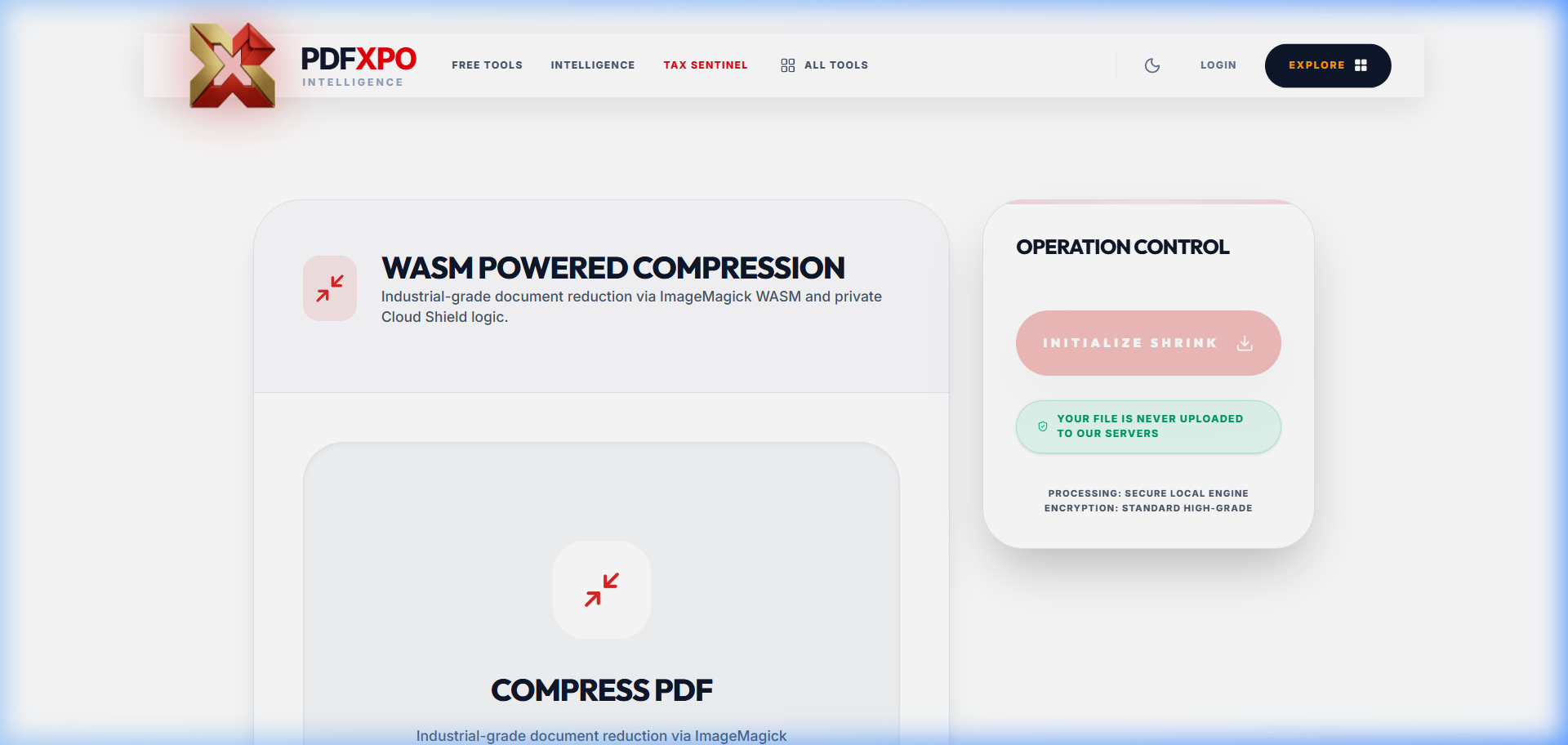
1. Open pdfxpo.com/compress-pdf in your browser
2. Drag your PDF onto the upload zone or tap to browse
3. Select your compression level — Standard is correct for most documents
4. Click Compress PDF
5. Download the compressed file — processing typically takes 5 to 15 seconds
The entire compression process runs inside your browser using WebAssembly technology. Your PDF never leaves your device and is never transmitted to any server. This matters when you are compressing contracts, medical records, financial statements, or any document where confidentiality is important.
Choosing the Right Compression Level
| Level | Best For | Typical Reduction | Quality |
|---|---|---|---|
| Standard | Business documents, reports, contracts | 40 to 60 percent | No visible change on screen |
| High | Scanned documents, photo-heavy PDFs | 70 to 85 percent | Slight reduction in image sharpness |
| Maximum | Archiving, very large files | 85 to 95 percent | Noticeable on photographs |
For most email attachments — proposals, invoices, reports, presentations — Standard compression is the right choice. It will bring a 20MB document to 8 to 12MB with no visible difference on screen.
How to Compress a PDF on iPhone and iPad
Method 1: Browser (No App Required)
1. Open Safari on your iPhone or iPad
2. Go to pdfxpo.com/compress-pdf
3. Tap the upload area and select your PDF from the Files app
4. Choose compression level and tap Compress
5. Tap Download — the compressed PDF saves to your Downloads folder in Files
Works on any iPhone running iOS 14 or later.
Method 2: Files App (Does Not Work as Expected)
Apple's Files app does not have a dedicated PDF compression feature. The "Compress" option in Files creates a ZIP archive, not a compressed PDF — this does not reduce the PDF file size in a useful way for email attachments.
Method 3: Print to PDF (Partial Solution, Unpredictable)
On iPhone, you can print any document to PDF using the Share > Print workflow, then pinch outward on the preview to save as PDF. This sometimes reduces file size by rasterizing the document, but results are unpredictable and quality can degrade significantly. The browser method is more dependable.
How to Compress a PDF on Android
1. Open Chrome on your Android device
2. Go to pdfxpo.com/compress-pdf
3. Tap to upload your PDF
4. Select compression level and compress
5. Download the compressed PDF to your device
Works on Android 8 or later with Chrome or any modern mobile browser.
How to Compress a PDF on Mac
Method 1: Browser (Any Browser)
The pdfxpo.com browser method works identically on Mac in Safari, Chrome, Firefox, or Arc.
Method 2: macOS Preview (Free, Built-In, Limited)
Preview on Mac has a "Reduce File Size" export option that can produce significant size reduction. However, the compression algorithm in Preview is aggressive and can reduce quality more than expected, particularly for documents with detailed diagrams or text at small sizes.
To use Preview: Open PDF > File > Export as PDF > Quartz Filter > Reduce File Size > Save.
Test the output carefully before sending — Preview can over-compress text-heavy business documents, making text blurry at standard zoom levels.
Method 3: Adobe Acrobat Pro (Paid)
File > Save As Other > Reduced Size PDF. Acrobat's compression is high quality with predictable results. At approximately $24 per month, it is worth considering if you compress PDFs regularly in a professional context.
How to Compress a PDF on Windows
Method 1: Browser (Any Browser)
The pdfxpo.com method works in Chrome, Edge, or Firefox on Windows. Edge is built into Windows 11 and requires no installation.
Method 2: Microsoft Print to PDF (Quick, Imprecise)
Any Windows application can print to PDF. This sometimes reduces file size by flattening the document, but quality control is poor and results vary significantly. Not recommended for professional documents.
Compressing PDFs from Specific Applications
PDFs from Microsoft Word
Word documents converted to PDF typically compress well because they are predominantly text with embedded fonts. A 50-page Word report with a few charts is typically 5 to 15MB before compression and 2 to 5MB after Standard compression.
If your Word-generated PDF is unexpectedly large, the most common cause is images inserted at full resolution. Before converting to PDF, reduce image resolution in Word: select the image > Format > Compress Pictures > choose "E-mail (96 ppi)."
PDFs from Excel
Excel PDFs can be surprisingly large when the spreadsheet contains many charts. A workbook with 20 charts may produce a 30 to 40MB PDF. Standard compression typically brings this to 8 to 12MB.
PDFs from PowerPoint
Presentations are the most image-heavy PDF type. A 40-slide deck with full-bleed photographs can produce a 100MB or larger PDF. High or Maximum compression is often appropriate for presentation PDFs sent by email since the recipient is reading them on screen, not printing them.
Scanned Documents
PDFs created by scanning physical pages are entirely composed of images. Compression works very well on scanned documents because the page content is a single image that can be resampled. A 20-page scanned contract at 300 DPI might be 40MB. After High compression it is typically 3 to 5MB with no legibility impact.
Size Benchmarks: What to Expect from Compression
| Document Type | Typical Original Size | After Standard | After High |
|---|---|---|---|
| 10-page text report, no images | 0.5 to 1 MB | 0.3 to 0.6 MB | 0.2 to 0.4 MB |
| 20-page report with charts | 5 to 15 MB | 2 to 6 MB | 1 to 3 MB |
| 40-slide presentation | 20 to 60 MB | 8 to 25 MB | 3 to 10 MB |
| 10-page scanned contract | 15 to 30 MB | 5 to 10 MB | 2 to 4 MB |
| 100-page legal brief (text only) | 3 to 8 MB | 1.5 to 4 MB | 0.8 to 2 MB |
Corporate Email and IT Restrictions
Many organizations configure email servers to reject attachments above a specific size. Exchange Server default limits are 10MB for incoming and outgoing attachments, though administrators frequently customize these.
Some organizations block password-protected PDFs at the email gateway as a security measure. If you plan to both compress and password-protect a PDF before emailing, check with your IT department whether protected PDFs are blocked.
For very large documents that cannot be compressed below corporate limits, your IT department typically has an approved internal file sharing solution (SharePoint, Teams, Box) that bypasses email attachment limits.
When Compression Is Not the Right Answer
Compression reduces existing file size, but it cannot make a file smaller than its content floor. Alternatives work better in these situations:
Embedded video or audio: Video content cannot be meaningfully compressed. PDFs with embedded video should be shared as links.
High-resolution technical drawings: Engineering drawings at full scale for professional printing often cannot be compressed enough for email without destroying required resolution.
Already-compressed files: A PDF that has already been through compression has most of its compressible data removed. Further compression yields minimal reduction.
PDF Compression vs. PDF Splitting for Email
Sometimes splitting is better than compressing. Use compression when the document is a single coherent deliverable and quality can tolerate some reduction. Use splitting when the document can be logically divided into sections and compression would unacceptably degrade quality.
PdfXpo's Split PDF tool lets you extract specific page ranges. Split a 60-page report into three 20-page sections, email each separately, and the recipient reconstructs the full document using PdfXpo's Merge PDF tool if needed.
Understanding DPI and Resolution
DPI stands for dots per inch — a measure of image resolution.
300 DPI is professional print quality. For email attachments that will be read on screen, it is unnecessary and produces large files.
96 DPI is screen resolution — the native resolution of most monitors and laptop displays. A document at 96 DPI looks identical to one at 300 DPI on any screen. It is approximately 90 percent smaller as a file. This is the target resolution for email attachments.
PdfXpo's Standard compression targets approximately 96 to 150 DPI for images, preserving screen quality while dramatically reducing file size.
Privacy When Compressing Confidential Documents
Most online PDF compressors work by uploading your file to their servers. This means your document is transmitted over the internet, processed on a third-party server, and subject to their data retention and security practices.
For documents containing financial data, health information, personal identifiers, legal content, or proprietary business information, this upload-based model creates real risk.
PdfXpo's local processing model eliminates this risk entirely. The compression runs in your browser — your document data never crosses any network connection. You can verify this by running PdfXpo's compression tool while monitoring network traffic in your browser's developer tools. You will see zero file upload requests.
PdfXpo vs Other PDF Compressors
| Feature | PdfXpo | iLovePDF | Smallpdf | Adobe Acrobat |
|---|---|---|---|---|
| File uploaded to server | Never | Yes | Yes | Yes |
| Free compressions per day | Unlimited | 2 to 3 | 2 | 1 per month free |
| Account required | No | No (limited) | No (limited) | Yes |
| Monthly cost to remove limits | Free | 6 euros | $12 | $24 |
| Works on iPhone (browser) | Yes | Yes | Yes | App required |
| Batch compression | Yes | Paid only | Paid only | Paid only |
Troubleshooting: PDF Still Too Large After Compression
Problem: Standard compression only reduced from 25MB to 20MB.
Try High compression — if Standard gave 20 percent reduction, High may give 70 to 80 percent.
Problem: High compression produced blurry text.
The document has complex vector graphics being rasterized. Use Standard only, or share via a Drive link.
Problem: File size barely changed with any compression level.
The document is likely already compressed, or its size is driven by embedded content that cannot be compressed (video, audio, already-compressed images). Sharing via link is the practical solution.
Problem: The compressed file looks fine on screen but the recipient says it is blurry.
The recipient is printing the document at high resolution. For documents that will be professionally printed, use Standard compression and provide the original for high-resolution printing on request.
Pre-Send Checklist for Email PDF Attachments
Frequently Asked Questions
Q: Does compressing a PDF reduce quality?
At Standard compression, the quality change is invisible on screen. Images are downsampled from print resolution to screen resolution — text remains perfectly sharp at all compression levels.
Q: Is it safe to compress confidential documents with an online tool?
With PdfXpo, yes — processing happens entirely in your browser, your file never reaches any server. For other online tools that upload your file to their servers, check their privacy policy before using them with confidential documents.
Q: Can I compress a PDF that is password protected?
You need to remove the password protection first using PdfXpo's Unlock PDF tool, then compress, then re-apply password protection if needed.
Q: Will compression change the text in the PDF?
No. Compression only affects image resolution and removes structural overhead. Text content, formatting, and layout are preserved.
Q: How much does PdfXpo compression cost?
It is free with no limits on number of files, file size, or compressions per day. No account required.
Q: Does compressing a PDF affect digital signatures?
Yes — compression modifies the file structure, which breaks any existing digital signature's validity. Compress before signing, not after.
Q: Can I batch compress multiple PDFs at once?
Yes. Drag multiple files into PdfXpo's compress tool simultaneously. Each compresses independently.
Related Tools
The Environmental Case for PDF Compression
Beyond email practicality, PDF compression has a measurable environmental benefit. Every large file transferred over the internet consumes electricity for data transmission and server storage. A 25MB document transferred to 100 recipients consumes roughly 2.5GB of network transfer. The same document compressed to 3MB consumes 300MB — a 90 percent reduction in transfer energy.
For organizations that send thousands of documents monthly — law firms, healthcare providers, financial services companies — the cumulative data reduction from systematic PDF compression is significant. Some organizations include document optimization as part of their environmental sustainability commitments.
Keeping Originals and Compressed Copies
A practical question: should you delete the original high-resolution file once you have the compressed version?
The answer is almost always no. Keep both versions.
The original serves as the source of truth: the highest-quality version you can use for professional printing, legal submissions requiring high-resolution documents, and future re-compression if standards change.
The compressed version serves as the distribution copy: the email-ready, upload-ready version optimized for the current use.
A simple folder structure works well: keep originals in "Documents/Originals" and maintain a "Documents/Email-Ready" folder for compressed versions. Some professionals name compressed files with a size indicator: "Proposal_ClientName_3MB.pdf" makes the email-ready version immediately identifiable.
Security Metadata in Compressed PDFs
PDF compression does not strip security metadata or digital rights management (DRM) settings. If your original PDF has DRM restrictions — preventing printing, copying text, or editing — these restrictions remain in the compressed version. This is generally the intended behavior.
However, document metadata (author name, creation date, title, software used) does persist through Standard compression unless you explicitly strip it. For confidential documents, use PdfXpo's metadata removal feature before or after compression to ensure no unintended information is embedded in the file.
For example, a financial proposal created from an internal template might have the template author's name in the document metadata, the internal project code in the document title, and the company's internal server path embedded in the PDF's creation history. None of this is visible when you open the document, but it is all readable by the recipient using standard PDF inspection tools. Metadata stripping takes about 5 seconds and removes this risk entirely.
Before You Compress: A Preparation Checklist
Getting the best results from compression starts before you run the tool. A few minutes of preparation can double the compression ratio.
Remove unnecessary pages. Appendices, cover pages inserted for internal review, backup slides, and draft versions of charts add file size without value to the recipient. Remove them before compressing.
Check for embedded objects. Some PDFs contain embedded Excel spreadsheets, Word documents, or other files that viewers can extract. These embedded objects can add megabytes to the file size while being invisible to most recipients. Strip embedded objects if they are not necessary.
Flatten form fields. Interactive form fields contain font data, JavaScript, and layout definitions even when empty. If the form has been filled in and is being sent as a record, flatten it first using PdfXpo's Flatten PDF tool, then compress. Flattening removes the form overhead before compression begins, producing better results.
Remove comments and annotations. Comment threads, sticky notes, and review annotations add data to the file. If your document has been through a review process and you are sending the final version, strip all annotations before compressing.
Compressing PDFs That Will Be Printed
Not all PDFs are email-only documents. Some will be printed by the recipient. This changes the right compression approach.
For documents that will only be viewed on screen: Standard or High compression is appropriate. 96 DPI on screen is indistinguishable from 300 DPI.
For documents that might be printed on a home or office printer: Standard compression is generally safe. Most home office printing at A4 or letter size is at 150 to 200 DPI effective resolution, which Standard compression preserves adequately.
For documents that will be professionally printed at a print shop: do not compress for email. Instead, share via secure file transfer and keep the original 300 DPI version intact. Compressed PDFs submitted to professional printers produce inferior output at large sizes.
If you need to email a document that will also be professionally printed, compress a separate copy for email and retain the original for print. This two-version workflow is standard practice in design agencies and print-heavy businesses.
Accessibility and Compression
PDF accessibility features -- screen reader text, alt text for images, reading order tags, language tags -- are stored as structural data separate from the visual content. Standard PDF compression does not remove accessibility data.
However, if compression involves rasterizing pages (converting vector content to images), accessibility features are destroyed because the text is no longer searchable or screen-readable. PdfXpo's compression preserves vector text and structural tags, maintaining accessibility compliance. If your organization has PDF accessibility requirements (ADA, WCAG, PDF/UA), verify the compressed output retains accessibility properties before distribution.
A Practical Workflow for Regular PDF Email Senders
If you regularly send PDFs by email -- proposals, invoices, reports -- a standard compression step before sending protects your document quality and ensures deliverability.
Quick daily workflow:
1. Finish your document. Export or save as PDF from your source application.
2. Open pdfxpo.com/compress-pdf in a browser tab you keep pinned.
3. Drag the PDF in. Standard compression. Download.
4. Attach the compressed file to your email.
The time cost is under 30 seconds per document. The benefit is that your documents arrive reliably, your recipients do not see oversized attachment warnings, and you have a consistent archive of email-optimized documents separate from your original high-resolution files.
For teams that regularly share large PDFs internally, consider establishing a standard: all documents shared by email must be under 10MB. Compression becomes a standard step like spell-checking -- automatic and expected.
DPI and Resolution: What the Numbers Mean
DPI stands for dots per inch -- a measure of image resolution. Understanding it helps you choose the right compression level.
300 DPI is professional print quality. A letter-size page at 300 DPI contains 2,550 x 3,300 pixels. Appropriate when your document will be professionally printed. For email attachments read on screen, it is unnecessary.
150 DPI is adequate for documents that might occasionally be printed on a home printer but are primarily read on screen. Slightly smaller file size than 300 DPI with no practical loss for most business use.
96 DPI is screen resolution -- the native resolution of most monitors and laptops. A document at 96 DPI looks identical to one at 300 DPI on any screen. As a file it is approximately 90 percent smaller. This is the practical target for email attachments.
72 DPI is the historical "web resolution" standard. Acceptable for documents that will only ever be read on screen and never printed.
PdfXpo's Standard compression targets 96 to 150 DPI for images. High compression targets 72 to 96 DPI. Maximum compression targets 72 DPI or lower.
Privacy When Compressing Confidential Documents
Most online PDF compressors work by uploading your file to their servers, running compression, and returning the result. Your document is transmitted over the internet, processed on a third-party server, and retained according to their privacy policy.
For documents containing financial data, health information, legal content, personal identifiers, or proprietary business information, this upload-based model creates real risk. Some services explicitly state they may use uploaded content for service improvement.
PdfXpo's local processing model eliminates this entirely. The compression WebAssembly module runs in your browser -- your document data never crosses any network connection. This is not a privacy policy claim -- it is a technical architecture fact verifiable by monitoring network traffic in your browser's developer tools. You will see zero file upload requests during a PdfXpo compression.
For professionals who regularly compress sensitive documents -- lawyers, healthcare providers, accountants, HR professionals -- local processing is not just convenient. It is the appropriate choice for maintaining client confidentiality and regulatory compliance.
The Bottom Line on PDF Compression for Email
Compression is a two-minute step that solves one of the most common frustrations in professional document sharing: attachments that bounce, trigger warnings, or take minutes to load on mobile. The right compression level for most business documents is Standard -- it halves the file size while keeping text crisp and images fully readable on screen.
For confidential documents, PdfXpo is the appropriate choice because your file never leaves your device. For everyday business documents, any Standard-level compression gets the job done. The key habit is making it automatic: compress before you attach, every time.