How to Make Your PDF IRS-Compliant: Flatten, Compress, and Fix Rejected Tax Forms
The IRS Modernized e-File (MeF) system rejects thousands of PDF submissions every tax season for purely technical reasons that have nothing to do with your actual tax information. A PDF that opens perfectly in Adobe Reader can still fail MeF validation because the IRS checks for specific structural properties that most people don't know about.
This guide covers every MeF technical requirement, the most common rejection error codes, and exactly how to fix your PDFs before submission — for free, without expensive software.
The single most common cause of PDF rejection: Submitting a fillable PDF with unflattened form fields. The IRS MeF system cannot reliably process interactive form layers. The solution takes under 60 seconds.
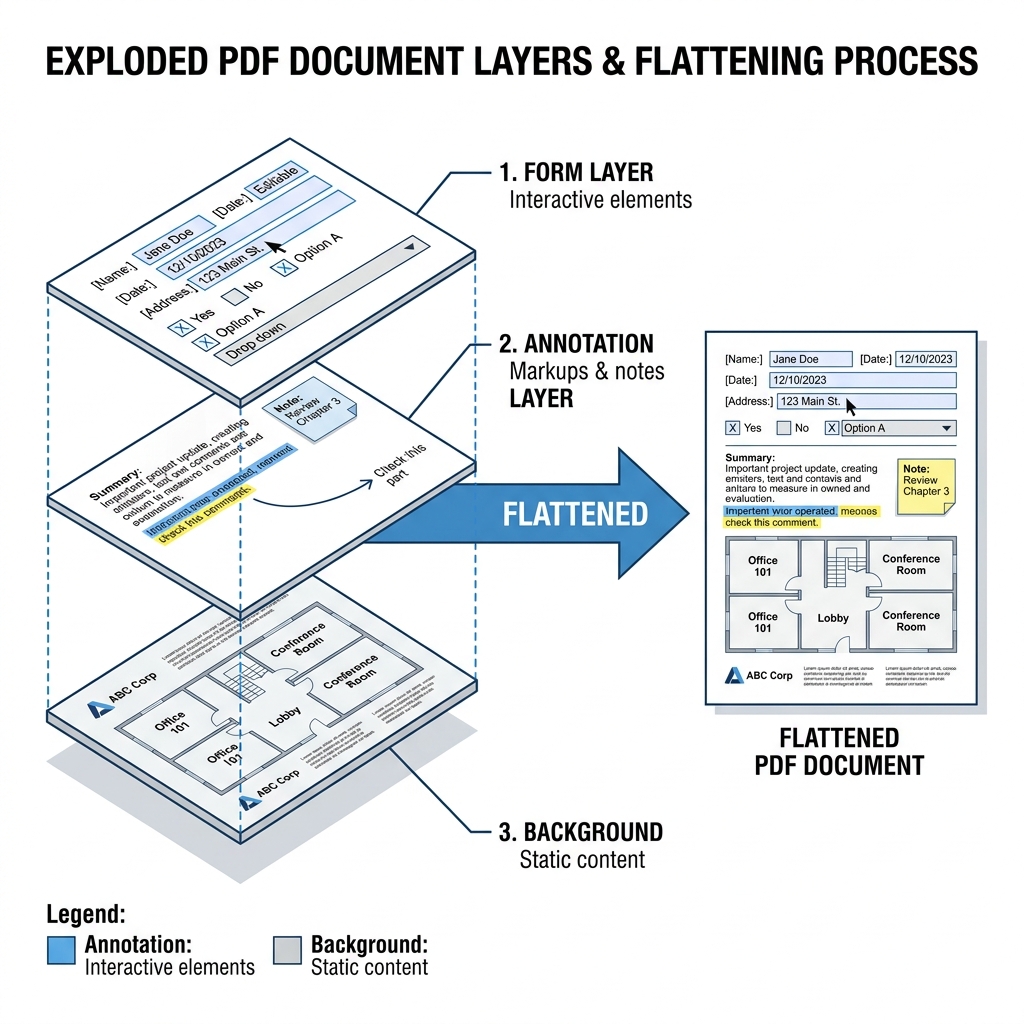
What Is a Flattened PDF and Why Does the IRS Require It?
A standard PDF can contain two fundamentally different types of data simultaneously:
Interactive layers — non-flat PDF:
Static page content — flat PDF:
When you download the official IRS Form 1040 from irs.gov and fill it in, your typed data exists as a separate data layer floating above the visual page. If you submit that file to some processing systems — including older IRS validation servers — the server may not read the field data correctly, may read default placeholder values instead of your entries, or may reject the file entirely.
Flattening merges those interactive layers permanently into the static page content. After flattening, your filled-in values become part of the page itself — visually identical to before, but structurally reliable for any PDF processor.
Think of it like the difference between a sticky note on top of a printed page versus text that is actually printed on the page. Flattening converts the sticky note into printed text.
IRS MeF Technical Requirements for PDF Attachments
The IRS MeF Submission Composition Guide specifies these requirements for PDFs attached to electronically filed returns:
File size limits:
File structure requirements:
Content requirements:
The 7 Most Common Reasons the IRS Rejects Your PDF
1. Unflattened Form Fields — The Most Frequent Cause
What it looks like: Your submission is accepted initially but figures don't match what you entered, or you receive an acknowledgment error referencing specific field values.
Why it happens: Fillable PDFs downloaded from irs.gov contain interactive field layers. When you submit without flattening, the IRS system may read field metadata rather than your displayed values.
The fix: Flatten the PDF before attaching it. PdfXpo Flatten PDF converts all interactive layers to static page content in your browser — locally, in seconds. Your values become a permanent part of the page.
2. File Too Large for the Submission Portal
What it looks like: "File exceeds maximum size," the upload stalls, or the submission platform shows an error after uploading.
Why it happens: Comprehensive financial statements, multiple years of bank records, and property documentation frequently exceed portal limits.
The fix: After flattening, compress the PDF. PdfXpo Compress PDF lets you set a specific target file size — for a 10MB portal, target 8MB. For most tax documents, which are primarily text, you can typically achieve 70 to 85 percent size reduction with no visible quality loss.
3. Password-Encrypted PDF
What it looks like: Error code R0000-902-01 or similar, or the portal shows "unable to process document."
Why it happens: Documents from financial institutions or accounting software often have password protection applied.
The fix: Remove the password using PdfXpo Unlock PDF — you need the current password. Submit the unencrypted file. Never submit a password-protected PDF to IRS portals.
4. Low-Resolution Scanned Document
What it looks like: Rejection during manual review for illegibility, or soft failure where submission is accepted but flags manual processing review.
Why it happens: Most office scanner "fast" settings produce 72 to 100 DPI. The IRS requires minimum 150 DPI and recommends 300 DPI.
The fix: Re-scan at 300 DPI if the original document is available. If you cannot re-scan, PdfXpo's OCR feature adds a machine-readable text layer over the existing scan, making the document processable even at lower image quality.
5. Corrupt or Non-Standard PDF Structure
What it looks like: Error during portal upload even though the file opens normally on your computer.
Why it happens: Some PDF generation software produces files with subtle structural deviations. Adobe Reader is permissive about these; IRS validation servers are strict.
The fix: Open the problematic PDF in any PDF viewer, then print to PDF using your OS "Save as PDF" or "Print to PDF" option. This regenerates the PDF structure from scratch. Then flatten and compress the regenerated file.
6. JavaScript Embedded in the PDF
What it looks like: Rejection citing "active content" or "scripting."
Why it happens: Some PDF forms include JavaScript for auto-calculation and field validation. These scripts must not be present in submitted files.
The fix: Flattening also removes JavaScript automatically because it converts the dynamic form into static content. PdfXpo Flatten PDF resolves both interactive fields and JavaScript simultaneously.
7. Wrong PDF Version
What it looks like: Compatibility error from older software generating PDF 1.2.
The fix: Open and re-save through any modern PDF viewer. This normalizes the version to PDF 1.6 or 1.7, which has universal MeF compatibility.
Step-by-Step: Prepare a Tax PDF for IRS Submission in Under 3 Minutes
Step 1: Complete all form entries first.
Flattening makes fields permanent and non-editable. Always fill the form completely before flattening. If you flatten an empty form, you cannot add information afterward. Fill first, verify, then flatten.
Step 2: Flatten the PDF.
Go to pdfxpo.com/flatten-pdf. Upload your completed tax form. Click "Flatten PDF." Download the result. Processing happens locally in your browser — your tax documents are never transmitted to any server.
Step 3: Verify the flattening worked.
Open the flattened PDF. Try clicking into a text field. If flattening succeeded, fields are not clickable or editable — values appear as static text.
Step 4: Check file size against your portal limit.
Right-click the file and check its size (Properties on Windows, Get Info on Mac). IRS direct portals: typically 60MB. Tax software platforms: commonly 10 to 20MB. State portals: often 5 to 10MB.
Step 5: Compress if needed.
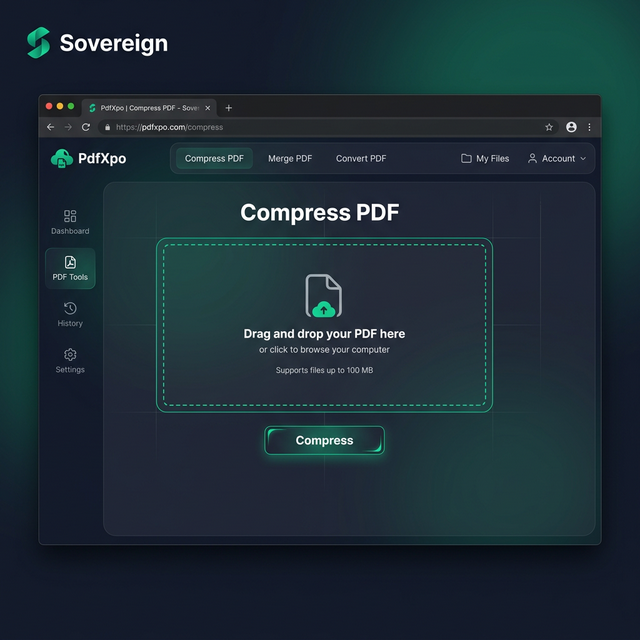
Go to pdfxpo.com/compress-pdf and use Target Size mode. Set the target slightly under the portal limit.
Step 6: Verify output quality.
Open the compressed PDF at 100% zoom. All text and numbers must be clearly legible. If anything looks blurry, increase the target size and recompress.
Step 7: Submit. Your PDF is ready for IRS e-filing.
Form-Specific PDF Requirements
Form 1040 and Schedules:
The Form 1040 from irs.gov is a fillable PDF. If preparing manually (not through tax software), flatten before submitting. Tax software handles flattening automatically — you only need to flatten PDFs prepared outside the software.
Form 1099 Series:
1099 forms from payroll software are typically already flat. When using IRS fillable PDFs manually, flatten before issuing to recipients and before filing. Checkbox fields must be permanently set via flattening.
W-2 Forms:
Always flatten W-2 PDFs before distributing to employees. Recipients use W-2s for mortgage applications and loan verification — flattened files display consistently across all PDF viewers.
Schedule C:
Flatten after completing all entries. Schedule C has many calculated fields — verify all totals are correct in the static output before submitting.
Form 941 and 940:
Payroll software typically generates these as properly structured, already-flat PDFs. Flatten any supporting schedules or supplemental documentation before attaching.
State Tax Portal Requirements
Each state has different technical requirements. Key differences:
California (Franchise Tax Board): 50MB maximum. Flattening strongly recommended to avoid display inconsistencies during staff review.
New York (Department of Taxation and Finance): 10MB maximum per file — much lower than federal IRS. Flatten all fillable forms.
Texas (Comptroller): 5MB maximum. eSystems portal has known compatibility issues with interactive PDF fields. Always flatten and compress below 5MB before uploading.
Illinois: 20MB maximum. Standard MeF-compatible requirements.
Florida: 15MB maximum for sales and use tax filings. No state income tax.
Universal safest practice for all states: Flatten and compress to under 5MB. This meets virtually every state portal's requirements without exceptions.
Compression Targets for Different Tax Documents
| Document Type | Target Size | Notes |
|---|---|---|
| Form 1040 with all schedules | Under 2MB | Mostly text, compresses very well |
| W-2 or 1099 forms | Under 500KB | Minimal graphics, highly compressible |
| Monthly bank statements | 1 to 3MB | Tables and headers, moderate compression |
| Receipts and invoices | 500KB to 1MB | Depends on scan quality |
| Property photographs | 1 to 2MB | Keep legible at 100% zoom |
| Multi-year tax records | Under 5MB per year | Verify legibility after compressing |
Privacy: Why Tax Documents Should Never Go Through Unknown Servers
Tax documents contain Social Security Numbers, full income details, employer information, bank account numbers, and complete financial histories. Before using any online tool to process these files, confirm it processes locally — not by uploading to a server.
PdfXpo's Flatten PDF and Compress PDF tools both run using WebAssembly in your browser. Nothing is transmitted to any server. Verify this yourself: open browser Developer Tools (F12 in Chrome), go to the Network tab, and watch for outbound requests while using the tools. No file-upload requests appear because all processing is local.
Questions to ask about any tool you use for tax PDFs:
1. Does it upload the file, or process locally?
2. What is the data retention policy?
3. Is there a public privacy policy?
4. Do they have signed Data Processing Agreements for enterprise users?
What to Do When the IRS Rejects Your Return
If you receive a rejection acknowledgment, the error code identifies the problem:
R0000-902-01 or encryption errors: Remove password with PdfXpo Unlock PDF, resubmit.
X0000-005 data structure errors: Flatten the attachment and resubmit.
Attachment validation failure: Flatten the specific PDF attachment named in the error.
File size exceeded: Compress the specific attachment with PdfXpo Compress.
IRS resubmission window: After rejection on or before the filing deadline, you typically have 5 days to correct and resubmit without penalty. Fix only the PDF technical issue — do not change any actual tax figures — then resubmit.
State portal rejection timelines vary; most allow resubmission within a similar window.
Common Mistakes That Lead to Rejections
Flattening before filling: Impossible to undo. Fill completely, then flatten. Keep this order always: fill, verify, flatten, compress, submit.
Using "Save as" in free Adobe Reader instead of flattening: Adobe Reader's Save As preserves the form structure — it does not flatten. Use a dedicated flatten tool like PdfXpo Flatten PDF.
Over-compressing supporting documents: Compression that makes numbers in financial tables hard to read can cause problems during IRS manual review. Always open and verify legibility after compression.
Forgetting supplemental PDF attachments: The main return may be correctly formatted, but supporting PDF attachments — expense schedules, depreciation worksheets, bank statements — each need individual flattening and size verification.
Saving over the original: Save the flattened version under a new filename (example: form1040_2025_FLAT.pdf). Keep the original editable file until the filing deadline passes, in case corrections are needed.
Pre-Submission Checklist
Before attaching any PDF to an IRS or state tax e-filing:
Frequently Asked Questions
Q: Do I need to flatten if I am using TurboTax, H&R Block, or similar software?
No. Tax software formats and transmits your return data in the correct IRS-specified format automatically. The PDF you download for your own records may have interactive elements, but your actual e-filed submission goes through the software's data channel. You only need to flatten manually when attaching separate supporting documents you prepared outside the tax software.
Q: My filed numbers don't match what I entered — could unflattened fields cause this?
Yes, this is a known issue. The displayed value in a fillable field and the stored field value can differ when the form contains calculation JavaScript. Flattening ensures the visually displayed value is what gets processed. If you suspect this, flatten the form and resubmit as an amended return.
Q: Can I flatten a tax PDF on my iPhone?
Yes. Open Safari, go to pdfxpo.com/flatten-pdf, tap "Select File," choose the PDF from your Files app. Processing runs locally on your device — nothing is uploaded.
Q: My supporting document is a scanned PDF with poor image quality. Will the IRS accept it?
Technically yes if file structure is valid and size is within limits, but poor image quality may trigger a manual review request or be cited as insufficient documentation. Add a text layer via PdfXpo OCR to improve machine-readability, and re-scan at 300 DPI from the original if available.
Q: Can I use the same flattened PDF for both federal and state submissions?
Yes. A properly flattened, size-compliant PDF meets both federal IRS and all state portal technical requirements. Flatten once and submit the same file everywhere.
Q: Is there a free way to check IRS compliance before submitting?
The practical free checklist: flatten, verify no interactive elements remain, confirm no password protection, check file size against portal limit, compress and verify legibility if needed. This approach addresses the vast majority of MeF rejection causes without paid software.
The Free Tools You Need
Everything required for IRS-compliant PDF preparation is free at pdfxpo.com:
All tools run locally in your browser. No account required, no server uploads, no software to install.
How Tax Software Generates PDFs vs Manual Preparation
Understanding the difference between software-generated and manually prepared tax PDFs explains why some files need flattening and others don't.
Tax software (TurboTax, H&R Block, FreeTaxUSA, TaxAct, Drake):
When you complete your return through any major tax software and click "e-file," the software transmits your tax data in a structured XML format — not as a PDF. The PDF you download from the software (your return summary) is generated purely for your records. These software-generated PDFs are already flat because the software exports them as completed, static documents, never as interactive forms.
IRS fillable PDF forms (downloaded from irs.gov):
The IRS provides downloadable fillable PDFs for taxpayers who prefer to prepare returns manually or who need specific schedules not covered by their software. These PDFs are specifically designed to be interactive — they have JavaScript for field calculations, tab navigation between fields, and validation logic. When you fill these in and save, the interactive layer is preserved. These always require flattening before submission.
Forms generated by specialized software (payroll systems, accounting platforms):
Payroll software like QuickBooks Payroll, ADP, or Gusto generates W-2s and 1099s as static PDFs automatically. These are typically already flat. Accounting platforms like NetSuite or Sage generate financial statements as non-interactive PDFs. You can generally trust these are flat, but a quick verification (try clicking into text — if it's not editable, it's flat) takes only seconds.
Scanned forms:
Physical paper forms that were scanned are inherently flat — scans are images, not interactive documents. Scanned PDFs don't need flattening. However, they do need to meet resolution requirements (150 DPI minimum) and may benefit from OCR processing for machine-readability.
Batch Processing Multiple Tax Forms
When preparing returns that require numerous attachments — common for small businesses, rental property owners, or individuals with complex financial situations — processing PDFs one at a time is impractical. Here's an efficient workflow for batch preparation:
Step 1: Gather all source documents.
List every PDF you need to attach. Common attachments beyond the main return: bank statements, brokerage statements, mortgage interest statements (Form 1098), charitable donation receipts, business expense documentation, depreciation schedules, and any IRS-issued notices.
Step 2: Sort by type.
Group documents into categories:
Step 3: Process in batches by type.
Flatten all fillable forms in sequence, then compress everything that's over your portal size limit. This is faster than switching between operations document by document.
Step 4: Merge related documents.
Some portals accept a single merged PDF for related supporting documentation. For example, merge all twelve monthly bank statements into one file rather than uploading twelve separate documents. Use PdfXpo Merge PDF to combine related documents before upload.
Step 5: Final size audit.
Before starting the submission session, check the file size of every attachment. Create a simple list: document name, file size, portal limit. Address any over-limit files with PdfXpo Compress before you're in the middle of the submission workflow.
Naming convention: Use a consistent file naming format that makes the submission session efficient: "2025_1040_schedule_c.pdf", "2025_bank_statement_jan.pdf", etc. Clear names prevent submitting the wrong version.
Digital Signatures and IRS PDF Submissions
Digital signatures on PDFs add a layer of complexity to IRS compliance preparation. Here's what you need to know:
When digital signatures appear on tax-related PDFs:
What happens to digital signatures when you flatten:
Flattening a digitally signed PDF invalidates the cryptographic signature. The signature was mathematically applied to a specific version of the document structure — flattening changes that structure, breaking the signature's validity check.
Does this matter for IRS submissions?
For most supporting attachments, no. Bank statements and financial reports with institutional digital signatures are supporting documentation — the IRS needs the information they contain, not a cryptographic certification of their authenticity. A flattened bank statement is acceptable.
For the main e-filed return itself: the IRS does not require or recognize electronic PDF signatures. Your identity is verified through your AGI or IP PIN during the e-file process, not through PDF cryptographic signatures.
When to keep original signed documents separate:
If a document's legal validity depends on its digital signature — a signed settlement agreement, a certified accountant's attestation, a court-ordered document — keep the original unmodified signed version separately and provide the flattened version only as a reference copy to the IRS. The IRS is not the party validating the signature in these cases.
Understanding PDF Quality Standards for Tax Records
Not all compressed PDFs are equal. When compressing tax documents, understanding quality standards helps you make the right trade-offs.
What matters in a tax document at 100% zoom:
What doesn't matter for a tax document:
The right compression level for text-heavy tax forms:
Most Form 1040s, schedules, and financial statements are primarily text with minimal graphics. These compress extremely well — 80 to 90 percent reduction is achievable while maintaining full legibility because text compresses far better than images.
When to be conservative with compression:
Documents containing hand-written entries, handwritten signatures, or hand-drawn diagrams deserve more conservative compression. The difference between a legible and illegible handwritten number (especially under examination conditions) can have significant consequences.
Testing legibility after compression:
Zoom to 100% and check:
1. A row of small numbers from a financial statement
2. Any handwritten content
3. The smallest text on the document (often footnotes, fine print, or field labels)
If everything passes at 100% zoom, the document meets professional legibility standards for IRS submission.
What to Expect During an IRS Audit of Digital Submissions
If your e-filed return is selected for examination (audit), the quality of your PDF attachments becomes directly relevant:
Document requests: IRS examination agents request specific supporting documents, referencing the attachments from your original submission. They will request the documents again if the originals were not clear enough to resolve their questions.
Re-submission standards: Documents submitted in response to audit requests go through the same MeF technical validation as original submissions. Apply the same flatten-and-compress workflow to examination responses.
Record retention: Keep original unflattened versions of all documents you submit. You may need to reference, reprint, or resubmit them. The IRS generally recommends retaining tax records for 3 to 7 years depending on the return type.
Digital vs physical originals: For documents that originally existed as paper (bank statements, receipts, contracts), the IRS accepts high-quality scans as substitutes for originals in most circumstances. Minimum 200 DPI for examination purposes; 300 DPI preferred.
Summary: The IRS PDF Preparation Hierarchy
In order of priority when preparing PDFs for tax submission:
1. Flatten first — all fillable forms, before anything else
2. Remove passwords — any encrypted file must be decrypted
3. Verify legibility — especially for scanned documents
4. Check and reduce file size — compress to meet portal limits
5. Verify the output — open final files at 100% zoom before submitting
6. Keep originals — archive unflattenned originals for your records
Following this sequence in order eliminates the vast majority of IRS PDF rejection causes before they happen.