How to Merge PDF Files Free in 2026 — Complete Guide for All Devices
Merging PDF files should take 30 seconds. But between confusing desktop software, watermark-heavy "free" tools, and sketchy websites that upload your documents to unknown servers, it turns into a 20-minute ordeal. This guide covers every working method — tested and confirmed in 2026 — for merging PDFs free across every device and operating system.
Quick answer: For browser-based merging with full privacy (no uploads), use PdfXpo's free PDF Merger. It runs entirely in your browser using WebAssembly, so your files never leave your device. For Mac users with simple files, Preview is the best built-in option. For mobile, the method depends on your OS.
What This Guide Covers
This guide is based on direct testing of 11 PDF merger tools in 2026, evaluating output quality, file size handling, privacy practices, and cross-device compatibility.
Method 1: Merge PDFs Free in Any Browser — No Software, No Uploads
Best for: Anyone on any device who values privacy, or who handles sensitive documents.
PdfXpo's merge tool uses WebAssembly SIMD to process PDFs entirely inside your browser's memory. Your files are never transmitted to any server. This is verifiable: the tool works with your Wi-Fi disconnected after the page loads.
Step-by-step instructions:
1. Open pdfxpo.com/merge-pdf in Chrome, Firefox, Safari, or Edge.
2. Click "Select PDF Files" or drag and drop your files into the upload zone.
3. Select multiple files at once — there is no file count limit.
4. Reorder your files by dragging them in the queue shown below the upload area. The order shown is the final page order of your merged document.
5. Click "Merge PDFs".
6. Click "Download" when the merged file is ready — typically under 10 seconds for files under 50MB combined.
What the output preserves: All text remains fully selectable and searchable, images stay at original DPI, hyperlinks and bookmarks are intact, embedded fonts are carried through. Nothing is rasterized or recompressed during the merge operation.
Output file size: Approximately the sum of input files. The merge adds no compression. If you need a smaller result for emailing or sharing, run the output through PdfXpo Compress immediately after.
Supported devices: Works on Windows, Mac, Linux, Chromebook, iOS, and Android — any device with a modern browser. No app installation required.
Method 2: Merge PDFs on Mac Using Preview — Completely Built-In
Best for: Mac users with a small number of PDF files who want to stay entirely in Apple's built-in tools without downloading anything.
macOS Preview has PDF merging capability built in — and most Mac users have no idea it exists. You have used it without knowing every time you opened a PDF.
Step-by-step instructions:
1. Open your first PDF in Preview by double-clicking it in Finder.
2. Go to View > Thumbnails in the menu bar. A sidebar showing page thumbnails appears on the left side.
3. Open a second Finder window (Command+N) and locate your second PDF.
4. Drag the second PDF from Finder directly into the thumbnail sidebar of the first PDF. Drop it exactly where you want those pages — at the beginning, end, or between specific pages of the first document.
5. Repeat for any additional PDFs.
6. When all pages are in the correct order (you can drag individual thumbnails to rearrange them), go to File > Export as PDF.
7. Name your merged file and click Save.
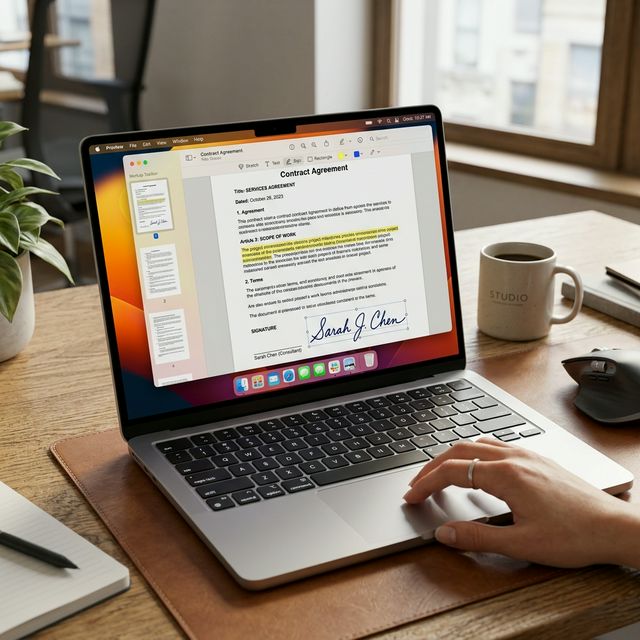
Important caveat about Preview: It handles standard text-based PDFs reliably. For PDFs with interactive form fields, digital signatures, or advanced typography from professional design software (InDesign, Illustrator), test the output carefully. Preview occasionally mishandles these elements. When in doubt, use the browser method.
Page-level reordering: You can drag any individual page thumbnail to any position in the sidebar before saving. If you merge a 10-page report and a 5-page appendix but want the appendix first, just drag those 5 pages to the top of the sidebar.
Memory and size: No hard file size limit. Preview uses your Mac's RAM. For combined source files over 500MB, expect slower processing.
Method 3: Merge PDFs on iPhone and iPad
Best for: iOS users who need to combine PDFs on mobile without downloading an app.
Option A: Using the Files App (iOS 16 and Later)
Apple added PDF merging to the Files app in iOS 16. The steps:
1. Open the Files app on your iPhone or iPad.
2. Navigate to the folder containing your PDFs.
3. Long-press the first PDF to enter selection mode, then tap each additional PDF you want to merge.
4. Tap the three-dot menu (or Share button) and look for a Create PDF or merge option.
The availability and exact location of this feature varies between iOS versions. If you don't see it, use Option B.
Option B: PdfXpo in Safari — Reliable on All iOS Versions
1. Open Safari and go to pdfxpo.com/merge-pdf.
2. Tap "Select PDF Files" — the iOS Files picker opens.
3. Navigate to your PDFs in the Files app and tap each one you want to merge.
4. Tap "Merge PDFs".
5. When the download appears, tap Download — the merged file saves to your Files/Downloads folder.
The WebAssembly processing runs entirely on your iPhone. Your PDFs are never sent anywhere. This works on iOS 14 and later in Safari.
Password-protected PDFs: Remove the password before merging using PdfXpo Unlock PDF, then proceed.
Method 4: Merge PDFs on Android
Best for: Android users who want a reliable, no-install, no-watermark solution.
Android has no built-in PDF merger equivalent to Mac's Preview. The browser method is the most reliable approach:
Using Chrome on Android:
1. Open Chrome and go to pdfxpo.com/merge-pdf.
2. Tap "Select PDF Files" to open Android's file picker.
3. Navigate to your Documents or Downloads folder and select your PDF files.
4. Tap "Merge PDFs".
5. The merged file downloads automatically to your Downloads folder.
Samsung Galaxy: Samsung's My Files app does not include PDF merging. Use Chrome with the PdfXpo method above.
Google Drive is not a PDF merger. Opening a PDF in Google Docs converts it to editable text — it does not merge PDF documents. That method destroys formatting and is only useful for text extraction.
Method 5: Merge PDFs on Windows 11 — No Adobe Required
Best for: Windows users who don't have Adobe Acrobat installed and don't want to install software.
Windows 11 File Explorer does not have a built-in PDF merger. Two options exist:
The Browser Method (Recommended for Windows)
Use pdfxpo.com/merge-pdf in Microsoft Edge, Chrome, or Firefox. Works on Windows 10 and Windows 11 without any installation. Same steps as Method 1.
The Print to PDF Workaround (Limited — Avoid for Merging)
Many guides suggest using Windows "Print to PDF" to merge PDFs. The reality: this method only handles one file at a time, re-rasterizes text into images (destroying text selectability), and produces larger files with reduced quality. For merging multiple PDFs, the browser method is faster, produces higher quality, and handles multiple files simultaneously. Avoid the Print to PDF workaround for merging.
Merging Large PDF Files Over 100MB
Large PDFs — architectural drawings, engineering specifications, comprehensive financial reports, annual reports with many charts — require specific handling during merging.
The challenges:
The right workflow for large PDF files:
Compress before merging. This single step makes the biggest difference. Many large PDFs contain full-resolution images that can be compressed to 20–30% of their size without visible quality degradation. Compressing each PDF before merging reduces processing time, memory usage, and output size. Use PdfXpo Compress on each file first, then merge the compressed versions.
Use a desktop browser for very large operations. Desktop Chrome or Firefox has access to substantially more RAM than mobile browsers. For files over 200MB combined, switching from phone to laptop browser avoids memory-related failures.
Close other browser tabs. Browser memory is shared across all open tabs. A few heavy tabs (video streaming, image-heavy websites) can leave insufficient memory for large PDF processing. Close tabs you don't need before starting.
Merge in batches if needed. For 20 large PDFs, merge them in groups of five. Then merge the resulting five PDFs into one final document. Each individual operation stays within comfortable memory limits.
The Privacy Problem With Most Free PDF Mergers
This section matters if your PDFs contain any sensitive information — financial records, medical documents, legal contracts, personal identification, business data, or confidential correspondence.
How most "free" PDF mergers actually work:
1. You click upload and your PDF transfers to their server infrastructure
2. Their server processes it and creates the merged output
3. You download the result
4. Your original files remain on their server for 1–48 hours (or longer — check the privacy policy if you can find it)
What this means practically:
How to verify whether a tool uploads your files:
Open browser Developer Tools (press F12 in Chrome) and go to the Network tab. Start a file upload. Watch for POST requests carrying your file data to external URLs. A tool that processes files locally using WebAssembly will show no such outbound requests.

PdfXpo's merge tool shows zero file-upload network requests during processing. All computation happens in your browser's sandboxed memory via WebAssembly.
Will Merging PDFs Reduce Quality?
The answer depends entirely on which approach the tool uses: vector merging or rasterization.
Vector merging (the correct approach):
The pages from multiple PDF documents are combined at the byte level. Content streams are appended together without any re-rendering. Output quality is mathematically identical to the originals. Text stays fully selectable and searchable. Images retain their exact original DPI. File size equals approximately the sum of input files. Bookmarks and hyperlinks remain functional.
Rasterization (the wrong approach that many tools use):
Each PDF page is rendered as a flat image, then those images are packaged together into a new PDF file. Text becomes non-searchable — it appears as an image of text, not actual text characters. Quality degrades noticeably, especially at high zoom. File size typically increases. Bookmarks, hyperlinks, table of contents, and any interactive elements are destroyed. Many phone apps and older online tools use this approach because it is technically simpler to implement.
Quick quality test after merging:
Open the merged PDF and try to select and copy a paragraph of text. If you can select text normally, the merge was vector-based and your quality is fully preserved. If clicking on text acts as if you clicked an image (no selection), the tool rasterized your document.
PdfXpo's merge uses pure vector merging — no rasterization, no image re-encoding, no quality loss.
Fixing the Most Common PDF Merging Problems
Problem: Pages Are in the Wrong Order
Fix: In PdfXpo's merge tool, the file queue is drag-and-drop reorderable — drag files to set the order before merging. For reordering pages within individual files (not just files within the queue), use PdfXpo Split PDF to extract specific pages, reorder them, then re-merge.
Problem: Merged File Is Too Large to Email
Fix: Most email services reject attachments over 25MB; many corporate mail servers cap at 10MB; Gmail's limit is 25MB but Google scans large attachments slowly. After merging, run the result through PdfXpo Compress. Target 8–10MB for general email attachments. For corporate email, target 5MB.
Problem: Blank Pages Appear in the Merged Output
Cause: One or more source PDFs contain blank pages — extremely common in double-sided print-and-scan workflows, where every odd-numbered document page gets a blank even-numbered backing page.
Fix: Use PdfXpo Split to extract and remove the blank pages from the problematic source file, then re-merge.
Problem: Fonts Look Wrong or Characters Are Missing
Cause: A source PDF references a font that is not embedded in the file. The viewer cannot find the font and substitutes a fallback, which may render differently.
Diagnosis: Open the problematic source PDF in Adobe Acrobat Reader, go to File > Properties > Fonts tab. Fonts listed without "(Embedded Subset)" or "(Embedded)" are not properly embedded.
Fix: Ask the creator of that PDF to re-export with font embedding enabled in their export settings. Alternatively, open the problematic PDF in a viewer, print it to PDF ("Save as PDF" via the OS print dialog), and use that re-generated version — the print-to-PDF process embeds fonts automatically.
Problem: Password-Protected PDFs Won't Merge
Fix: Remove the password first using PdfXpo Unlock PDF — you'll need the current password. Then proceed with the merge on the unlocked file.
Problem: Browser Crashes or Freezes During Large Merge
Fix in order:
1. Close all other browser tabs to free RAM
2. Compress each source file first using PdfXpo Compress
3. Switch from mobile browser to desktop browser
4. Merge in smaller batches rather than all at once
Bookmarks and Table of Contents When Merging
When merging PDFs that each contain internal bookmarks (chapter navigation, section markers), PdfXpo preserves those bookmarks within their respective sections in the merged output. Internal bookmarks within each source document remain intact and functional.
What most merging tools don't do automatically — including PdfXpo — is create a unified top-level bookmark hierarchy that spans all merged documents. If you merge three chapters and want a master Table of Contents linking to the start of each chapter, you need to either add that manually or use Adobe Acrobat Pro's "Combine Files" feature which has explicit cross-document bookmark creation.
Practical workaround for most users: Create a simple cover page PDF with a manually formatted table of contents (one line per section with page numbers), merge it as the first document, and rely on section-level bookmarks within the body for detailed navigation.
When to Use Adobe Acrobat Instead
Adobe Acrobat Pro costs $14.99–$23.99/month and is not necessary for most users. It becomes worthwhile when:
For occasional or regular personal use, PdfXpo's free merger produces equivalent quality output at zero cost.
Comparing All Methods at a Glance
| Your situation | Best method |
|---|---|
| Any device, privacy matters | PdfXpo browser method |
| Mac, simple files, want offline | macOS Preview |
| iPhone or iPad | PdfXpo in Safari |
| Windows without software | PdfXpo in Edge or Chrome |
| Android phone | PdfXpo in Chrome |
| Files over 100MB combined | Compress first, then PdfXpo |
| Daily professional batch use | Adobe Acrobat Pro |
Frequently Asked Questions
Q: How many PDF files can I merge at once with PdfXpo?
There is no file count limit. The practical ceiling is your device's available RAM — most modern devices comfortably handle combined source files up to 1GB. For larger projects, merge in batches of 10–15 files, then merge the resulting files.
Q: Does merging PDFs invalidate digital signatures?
Yes. Merging changes the document's content and structure, which invalidates cryptographic digital signatures. This is by design — a digital signature certifies a specific version of a specific document. After merging, the original signed documents remain valid; the merged copy does not carry the signature's legal certification. Keep original signed documents separately.
Q: Can I merge a PDF and a Word document together?
Not directly. First convert the Word document to PDF using PdfXpo Word to PDF, then merge the resulting PDF with your other files.
Q: Does merging PDFs work on Chromebook?
Yes. Open Chrome on ChromeOS and go to pdfxpo.com/merge-pdf. Same method as any browser-based approach.
Q: Can I merge PDFs offline, without an internet connection?
After loading the PdfXpo merge page, you can turn off your internet connection and the merge still completes — WebAssembly processing runs locally in your browser. You need an internet connection to load the page initially, but not during the actual merge operation.
Q: My merged PDF is much larger than I expected. Why?
If source PDFs contain uncompressed images or were scanned at high resolution, the merged output inherits all of that data. Run the merged file through PdfXpo Compress. For a 50MB merged document, compression to 5–10MB is usually achievable with no visible quality difference.
Q: Can I re-merge a PDF I've already merged?
Yes. Merged PDFs are standard PDFs — you can merge them again, split them, compress them, or use any other PDF operation on them just like any other file.
Complete Toolkit for PDF Management
Merging is one step in a document workflow. After merging, you might need to:
All tools run locally in your browser at pdfxpo.com — no account, no watermark, no upload.
Merging PDFs with Different Page Sizes
A common merging challenge: you have an A4 document and a Letter-size document (US standard), or a landscape-orientation chart alongside portrait-orientation pages. Most PDF mergers handle mixed page sizes by preserving each page at its original dimensions.
What to expect: PdfXpo's vector merge preserves every page at its exact original size. An A4 page stays A4, a Letter page stays Letter. The merged PDF contains pages of different sizes — which is perfectly valid and displays correctly in all PDF viewers. Adobe Reader, Chrome, and Preview all handle mixed-size PDFs without issues.
When you need uniform page sizes: If your recipient's software or printer requires uniform page dimensions — for example, a print shop that insists on A4 throughout — you'll need to resize pages before merging. The cleanest method is to open each PDF in a viewer, print it to "Save as PDF" with a specific paper size selected, which scales and re-exports each page to your target size. Then merge the uniformly-sized results.
Landscape pages in a portrait document: Landscape pages embedded in an otherwise portrait document are common in reports (wide charts, comparison tables). These merge correctly with no manual intervention — the landscape pages simply appear rotated when you flip through the document, which is the intended behavior.
Merging PDFs for Legal, Medical, and Professional Submissions
Certain professional submission contexts have specific requirements beyond basic file merging:
Court filings: Many court e-filing systems (PACER, state e-filing platforms) accept merged PDFs for consolidated exhibits. Key requirements: PDF/A compliance (a specific archival standard), text must be searchable (not scanned images), and file size limits apply per document. Use PdfXpo's merge for combining exhibits, then verify the output is searchable text before filing.
Medical records requests: HIPAA-compliant handling means your PDFs should never be processed through cloud servers that store uploaded documents. PdfXpo's local processing is appropriate for medical records — files are processed in your browser's memory and never transmitted.
Insurance claims: Insurance portals typically accept merged PDFs for multi-document claims. Combine all supporting documentation — photos, receipts, medical reports — into one organized PDF before upload. This is faster than uploading files individually and keeps related documents together.
Academic submissions: Universities and academic journals increasingly accept PDF submissions. If you're combining a research paper with appendices, figures, or supplementary data tables, merging into a single PDF ensures reviewers receive a complete document in a single file.
How to Merge PDFs on Linux
Linux users have the strongest command-line options for PDF merging, but browser-based tools work equally well.
Browser method (recommended for simplicity): Any Linux browser — Firefox, Chromium, Chrome — supports PdfXpo's WebAssembly merge tool at pdfxpo.com/merge-pdf. The same steps apply as any other desktop browser.
Command-line method using pdftk:
If pdftk is installed (available in most Linux package managers as "pdftk"), the command is: pdftk file1.pdf file2.pdf file3.pdf cat output merged.pdf
Command-line using Ghostscript:
gs -dBATCH -dNOPAUSE -q -sDEVICE=pdfwrite -sOutputFile=merged.pdf file1.pdf file2.pdf
Note: Ghostscript reprocesses the PDF through its rendering engine, which can affect quality for complex files. PdfXpo's vector merge is the better choice for files where layout preservation matters.
After Merging: Verifying Your Output
Before sending a merged PDF anywhere important, spend 30 seconds on these checks:
Text selectability: Click on a paragraph in the merged PDF and try to select words. If text is selectable, the merge was vector-based and quality is intact. If not, the tool rasterized your content.
Page count: Confirm the merged document has exactly the pages you intended. Page count equals the sum of all input documents' page counts (unless you intentionally excluded pages).
File size reasonableness: The merged file should be approximately the sum of your inputs. If it's dramatically larger (more than 20% above the sum), something unexpected happened during processing.
First and last pages: Always verify page 1 and the final page look correct — these are the most common locations for merge artifacts if something went wrong with file boundaries.
Internal links: If your source PDFs contain table of contents links or cross-references, click a few to confirm they still point to the correct pages in the merged document.
Running these checks takes under a minute and catches any issues before they become a problem at submission time.